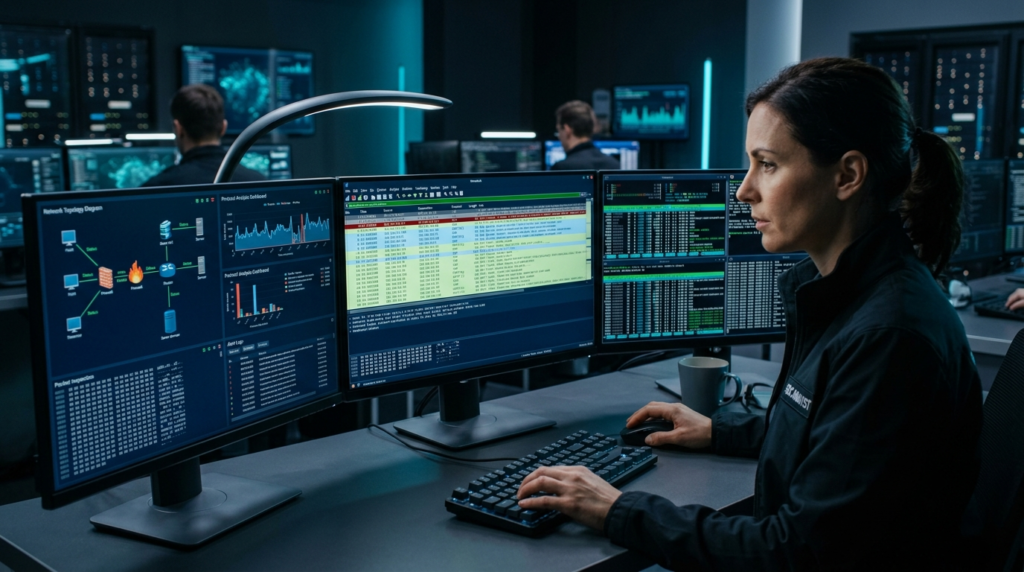
Wireshark is one of the most widely used tools for network traffic analysis and packet inspection. It allows security professionals, network administrators, penetration testers, and students to capture network traffic and examine what is happening at the protocol level.
When a website loads slowly, a DNS request fails, a TCP connection repeatedly resets, or suspicious network activity appears on a host, logs do not always tell the complete story. Packet captures can reveal what systems actually sent and received.
This Wireshark beginner guide explains how packet capture works, how to read packets, how to use capture and display filters, and how to investigate common protocols such as TCP, UDP, DNS, HTTP, and TLS.
Wireshark is particularly useful because it lets you move from a high-level network problem to individual packets. Instead of simply seeing that an application failed, you can investigate DNS resolution, TCP handshakes, retransmissions, connection resets, protocol errors, and other network behavior.
The official Wireshark User’s Guide documents packet capture, filtering, protocol analysis, stream following, statistics, and other features used throughout this guide.
Important: Only capture or inspect traffic on networks and systems where you have permission to perform monitoring or security analysis. Network packets can contain sensitive information.
What Is Wireshark?
Wireshark is a free and open-source network protocol analyzer. It captures network traffic and presents individual packets in a format that humans can inspect.
A packet capture can contain information from multiple protocol layers.
For example:
Ethernet
   ↓
IP
   ↓
TCP
   ↓
HTTP
   ↓
Application Data
Wireshark can dissect these layers and display fields within each protocol.
This makes it useful for both troubleshooting and cybersecurity.
A network administrator might use Wireshark to investigate packet loss.
A penetration tester might examine application traffic during an authorized assessment.
A security analyst might investigate suspicious connections.
A student might use a packet capture to understand how TCP actually works.
Why Is Wireshark Important in Cybersecurity?
Modern applications generate a huge amount of network traffic.
Security tools such as firewalls, IDS/IPS platforms, EDR products, and SIEM systems provide valuable alerts, but packet captures can provide lower-level evidence about what actually happened on the network.
Wireshark can help analysts investigate questions such as:
- Which host initiated the connection?
- What IP address did the system contact?
- Which port was used?
- Was DNS resolution successful?
- Did the TCP handshake complete?
- Were packets retransmitted?
- Did the server reset the connection?
- Which protocols were involved?
- Was unencrypted application data visible?
- What happened immediately before an error?
The tool is therefore useful across several areas of cybersecurity.
For example, during a network security investigation, an analyst might identify an unusual outbound connection. Instead of immediately assuming it is malicious, the analyst can inspect the destination, protocol, DNS activity, connection timing, and packet behavior.
The packet capture provides evidence that can then be correlated with endpoint and server logs.
How Wireshark Works
At a basic level, Wireshark captures packets from a network interface and decodes them using protocol dissectors.
A network interface might be:
- Ethernet
- Wi-Fi
- A virtual network adapter
- A VPN interface
- A loopback interface
- Another supported capture interface
When you start a capture, Wireshark receives packets visible to that interface according to the operating system, network architecture, and capture configuration.
It then displays the traffic in several main areas.
Packet List Pane
The packet list provides a summary of captured packets.
Common columns include:
- Packet number
- Time
- Source
- Destination
- Protocol
- Length
- Information
For example:
No.   Source        Destination      Protocol   Info
1     192.168.1.5   192.168.1.1      DNS        Standard query
2     192.168.1.1   192.168.1.5      DNS        Standard response
3     192.168.1.5   93.184.x.x       TCP        SYN
4     93.184.x.x    192.168.1.5      TCP        SYN, ACK
This provides a quick overview of network activity.
Packet Details Pane
Selecting a packet displays its protocol fields.
You may see:
Frame
Ethernet II
Internet Protocol
Transmission Control Protocol
Application Protocol
Each section can be expanded to investigate individual fields.
Packet Bytes Pane
The packet bytes pane displays the underlying bytes of the selected packet.
This is useful when you need to examine raw packet content or understand how protocol fields are represented.
Understanding Packet Capture
Before using Wireshark, it helps to understand what packet capture actually means.
Suppose your computer sends a DNS request.
Conceptually, the traffic might look like:
Your Computer
192.168.1.20
       |
       | DNS Query
       ↓
DNS Server
192.168.1.1
       |
       | DNS Response
       ↓
Your Computer
Wireshark can capture and display those packets if the traffic is visible to the selected interface.
The exact packets you can observe depend on your network setup.
On a switched network, for example, you generally do not automatically see every other host’s unicast traffic simply because Wireshark is running. Network architecture, switch configuration, capture location, and interface capabilities matter.
Installing Wireshark
Wireshark is available for major desktop operating systems, including Windows, macOS, and Linux.
Use the official Wireshark website and documentation when installing the software.
After installation, launch Wireshark and examine the available network interfaces.
You may see interfaces such as:
Ethernet
Wi-Fi
Loopback
VPN
Virtual Ethernet
The interface showing active traffic is usually a good starting point.
If you are unsure, generate some normal network activity, such as opening a website you are authorized to access, and observe which interface’s traffic counter changes.
Starting Your First Capture
Select the appropriate network interface and start the capture.
You will begin seeing packets appear in real time.
At first, the amount of traffic can be overwhelming.
Do not try to inspect every packet manually.
The key to using Wireshark effectively is filtering.
The official Wireshark documentation distinguishes between capture filters and display filters, and the two use different syntax.
Capture Filters vs Display Filters
This is one of the most important concepts for a Wireshark beginner.
Capture Filters
Capture filters are applied while capturing traffic.
They reduce the traffic that gets captured in the first place.
For example:
tcp port 80This can be used as a capture filter to capture TCP traffic involving port 80.
Capture filters use the libpcap filter language.
Display Filters
Display filters are applied after packets have been captured.
They determine which packets are currently shown in the packet list.
For example:
tcp.port == 80This displays packets matching TCP port 80.
The important difference is:
Capture filter
      ↓
Controls what gets captured

Display filter
      ↓
Controls what gets displayed
A display filter does not delete packets from the capture file. It simply hides packets that do not match the filter.
Wireshark’s official documentation specifically notes that capture and display filters are different filtering languages and serve different purposes.
Essential Wireshark Display Filters
Learning a small collection of display filters can dramatically improve your workflow.
Filter TCP Traffic
tcpThis displays TCP packets.
Filter UDP Traffic
udpThis displays UDP packets.
Filter DNS
dnsThis shows packets identified as DNS traffic.
Filter HTTP
httpThis displays packets dissected as HTTP.
Filter by IP Address
ip.addr == 192.168.1.10This shows packets where the specified address is involved.
You can also focus on a source:
ip.src == 192.168.1.10or destination:
ip.dst == 192.168.1.10Filter by TCP Port
tcp.port == 443This can help isolate traffic involving TCP port 443.
Filter a Specific TCP Stream
After identifying a TCP stream, you can use:
tcp.stream == 0Replace 0 with the stream number you are investigating.
Wireshark’s display-filter system supports protocol fields, comparisons, logical operators, and more complex expressions.
Understanding the TCP Three-Way Handshake
One of the best exercises for beginners is learning how to identify the TCP three-way handshake.
The basic sequence is:
Client                     Server

  SYN -------------------->

      <---------------- SYN, ACK

  ACK -------------------->
The three packets establish the TCP connection.
In Wireshark, you can filter TCP packets and inspect the flags.
A typical successful connection begins with:
SYN
SYN, ACK
ACK
This simple sequence becomes extremely useful during troubleshooting.
For example, if you see many SYN packets without corresponding SYN-ACK responses, possible explanations could include:
- The destination is unreachable
- A firewall is dropping packets
- The service is unavailable
- Routing is incorrect
- The server is overloaded
- The destination port is filtered
You should not immediately conclude that one specific cause is responsible. Packet analysis provides evidence, but the surrounding network context still matters.
TCP Flags Every Beginner Should Understand
TCP flags appear frequently during network troubleshooting.
Important flags include:
SYN
Used to initiate a TCP connection.
ACK
Acknowledges received TCP data.
FIN
Used during normal TCP connection termination.
RST
Resets a TCP connection.
A large number of TCP resets may be worth investigating, but context matters.
For example, an application may intentionally close connections, a firewall may reject traffic, or a service may terminate sessions because of application-level behavior.
Analyzing DNS Traffic
DNS is another excellent protocol for beginners to study.
Suppose a user accesses:
example.comBefore the application connects to the server, the system may need to resolve the domain name into an IP address.
A simplified flow is:
Client
   |
   | DNS Query
   ↓
DNS Resolver
   |
   | DNS Response
   ↓
Client
In Wireshark, use:
dnsYou can inspect:
- Query name
- Query type
- Response
- Returned IP address
- DNS server
- Timing
Real-World DNS Troubleshooting Example
Imagine users report that an application is unavailable.
The server itself appears healthy.
An analyst captures network traffic and notices DNS queries are timing out.
The problem may not be the application server at all.
It could be related to:
- DNS server availability
- Network connectivity
- Incorrect DNS configuration
- Firewall rules
- Resolver problems
Packet analysis helps narrow down where the failure occurs.
Analyzing HTTP Traffic
HTTP is useful for learning because it is relatively easy to understand at the protocol level.
In an authorized lab capture, filter:
httpYou may be able to inspect:
- HTTP methods
- Host headers
- URLs
- Response codes
- Headers
- User-agent information
- Application data
For example, a request might conceptually look like:
GET /login HTTP/1.1
Host: lab.example
A response might contain:
HTTP/1.1 200 OKor:
HTTP/1.1 404 Not FoundIn a controlled lab, this is an excellent way to understand how browsers communicate with web servers.
However, remember that modern websites commonly use HTTPS. Encryption prevents ordinary packet captures from exposing the plaintext application content.
Understanding HTTPS and TLS
HTTPS normally protects HTTP traffic using TLS.
Instead of seeing plaintext HTTP requests, a packet capture may show TLS-related traffic.
You can investigate:
- TLS handshake behavior
- Client and server addresses
- Connection timing
- TLS versions
- Certificate information where available
- Encrypted application traffic
- Connection failures
Encryption changes what Wireshark can directly read.
You may still see metadata such as:
- Source and destination IP
- Ports
- Packet sizes
- Timing
- TLS handshake information
But encrypted application data generally cannot simply be read as plaintext.
This distinction is important for security analysts. A packet capture can still provide valuable evidence even when application content is encrypted.
Following a TCP Stream
One of Wireshark’s most useful features is the ability to follow a protocol stream.
After selecting a suitable TCP packet, use the stream-following feature to examine the conversation associated with that TCP connection.
This can make a large capture much easier to understand.
Instead of manually examining hundreds of packets, you can focus on the conversation between two endpoints.
In an authorized lab, following a stream can help you understand:
- Request and response sequences
- Application behavior
- Connection errors
- Data exchanged between endpoints
- Session termination
For encrypted traffic, stream following will not magically decrypt protected application data.
Using Wireshark Statistics
Wireshark includes several statistics and analysis features.
These can help answer questions such as:
- Which protocols dominate the capture?
- Which hosts generated the most traffic?
- Which endpoints communicated?
- How many packets were captured?
- Which conversations are active?
- Where are potential traffic anomalies?
The Statistics menu can be especially useful when analyzing a large capture.
Instead of manually scrolling through thousands of packets, start with a high-level view and then drill down.
Real-World Example: Investigating Slow Network Performance
Suppose employees report that an internal application is unusually slow.
The network team captures traffic during the period when the problem occurs.
The analyst might investigate:
Client
  ↓
DNS resolution
  ↓
TCP connection
  ↓
TLS handshake
  ↓
Application request
  ↓
Server response
If DNS takes several seconds, the problem may be related to name resolution.
If the TCP handshake is delayed, investigate network connectivity or filtering.
If TCP retransmissions appear frequently, investigate packet loss or network conditions.
If the server responds quickly but the application waits before sending data, the issue may be higher in the application stack.
Wireshark does not automatically tell you which team is responsible. It provides packet-level evidence that helps narrow down the problem.
Wireshark for Cybersecurity Investigations
Wireshark can also support incident-response and security investigations.
An analyst might investigate:
- Unexpected outbound connections
- Suspicious DNS requests
- Unusual protocols
- Repeated connection attempts
- Strange TCP behavior
- Unexpected internal communication
- Malware-related network indicators
- Data-transfer patterns
For example, suppose a workstation suddenly communicates with an unfamiliar external address.
The analyst could investigate:
- Which process generated the traffic?
- What DNS name resolved to the address?
- When did the communication begin?
- Which protocol was used?
- How frequently did the host communicate?
- How much data was transferred?
- Were there other related connections?
Wireshark is particularly valuable when combined with endpoint telemetry, DNS logs, firewall logs, and SIEM data.
Wireshark in Penetration Testing
Penetration testers can use Wireshark to understand traffic generated during an authorized security assessment.
It can help with:
- Protocol analysis
- Application behavior
- Network troubleshooting
- Testing security controls
- Reviewing cleartext protocols in controlled environments
- Understanding authentication flows
- Investigating unusual network behavior
For example, during a web application assessment, a tester may need to understand whether an application is making an unexpected network request.
Wireshark can provide another perspective alongside tools such as Burp Suite.
However, Wireshark is primarily a packet-analysis tool. It does not replace vulnerability scanners, web proxies, endpoint tools, or manual testing.
Building a Beginner Wireshark Lab
The safest way to learn packet analysis is through your own lab.
A simple environment could contain:
             Isolated Lab Network

          +-----------------------+
          |                       |
      Kali/Linux              Test VM
       Wireshark              Web App
          |                       |
          +----------+------------+
                     |
              Virtual Network
You can generate harmless traffic by:
- Accessing a test web server
- Performing DNS lookups
- Connecting to an SSH service you control
- Sending ICMP traffic
- Testing a local application
Then capture the traffic and identify the protocols.
For structured “https://vuln.pentesthint.com/” hands-on labs, use intentionally controlled environments rather than capturing traffic from networks you do not administer.
Common Wireshark Mistakes
Trying to Analyze Everything at Once
A busy capture can contain thousands of packets.
Start with a question.
For example:
“Why is this connection failing?”
Then filter the relevant traffic.
Confusing Capture Filters With Display Filters
This is one of the most common beginner mistakes.
Remember:
Capture filter:
tcp port 80

Display filter:
tcp.port == 80
They look similar but are used at different stages.
Assuming Every TCP Reset Is an Attack
A TCP RST is not automatically malicious.
It can occur for many legitimate reasons.
Always investigate the surrounding traffic and application behavior.
Assuming Wireshark Shows Everything
The visibility of packet captures depends on where the capture occurs and how the network is configured.
On a switched network, your computer generally does not receive every other host’s unicast traffic.
Ignoring Encryption
If application traffic is protected with TLS, you should not expect to see the plaintext contents simply by applying an HTTP filter.
Understand what encryption protects and what metadata remains observable.
Wireshark Best Practices
Start With a Question
Do not capture traffic without a purpose.
Define what you want to investigate.
Use Filters Early
Filtering helps reduce noise and makes analysis faster.
Wireshark’s official documentation provides extensive filter syntax and a display-filter reference.
Save Useful Captures
Save relevant packet captures when they are needed for troubleshooting or incident documentation.
Follow your organization’s data-retention and privacy policies because captures can contain sensitive information.
Protect Capture Files
Packet captures may contain:
- IP addresses
- Hostnames
- URLs
- Authentication-related information
- Application data
- Metadata about users and systems
Treat them as potentially sensitive evidence.
Correlate With Other Logs
A packet capture is strongest when combined with other evidence.
For example:
Wireshark
   +
Firewall Logs
   +
DNS Logs
   +
Endpoint Logs
   +
Application Logs
Together, these sources can provide a much clearer picture of an incident.
Wireshark vs TShark
Wireshark provides a graphical interface for packet analysis.
TShark is its command-line counterpart and is useful for automation and environments where a graphical interface is unavailable.
For example, TShark supports display filters using the -Y option and capture filters using the -f option.
A simple example of reading a capture file could look like:
tshark -r capture.pcapA display filter can be applied with:
tshark -r capture.pcap -Y "dns"This makes TShark useful for scripted analysis and large-scale workflows.
The official TShark documentation explains that capture filters and display filters use different options and that capture filters can be more efficient during live capture.
Learning Wireshark for a Cybersecurity Career
Wireshark is useful across several cybersecurity roles.
Security Analyst
Security analysts use packet analysis to investigate suspicious network activity and security alerts.
Network Security Engineer
Network professionals use Wireshark to troubleshoot connectivity, protocols, and security controls.
Penetration Tester
Pentesters can use packet captures to understand network behavior during authorized assessments.
Incident Responder
Incident responders can use packet evidence to reconstruct parts of a security event.
Malware Analyst
Network traffic can provide useful indicators when analyzing malware behavior in a controlled environment.
If you are building cybersecurity fundamentals, structured “https://academy.pentesthint.com/” cyber security training combined with packet-analysis practice can help connect theory with real network behavior.
Future Scope of Wireshark
Network visibility remains important as organizations adopt cloud services, remote work, APIs, containers, encrypted protocols, and increasingly distributed architectures.
The role of packet analysis is changing, but it has not disappeared.
Security professionals still need to understand:
- TCP/IP
- DNS
- TLS
- HTTP
- Network segmentation
- Cloud networking
- VPN traffic
- Container networking
- Network detection
- Incident response
Wireshark’s extensive protocol support and filtering capabilities make it useful for learning these concepts at a practical level.
For beginners, the biggest long-term benefit is not memorizing hundreds of filters. It is learning how network communication actually behaves.
Frequently Asked Questions
What is Wireshark used for?
Wireshark is used to capture and analyze network packets. Common uses include network troubleshooting, protocol analysis, cybersecurity investigations, incident response, and authorized penetration testing.
Is Wireshark free?
Yes. Wireshark is free and open-source software.
Is Wireshark safe for beginners?
Yes, when used responsibly. Beginners should practice on their own devices or isolated laboratory networks and avoid capturing traffic they are not authorized to monitor.
What is the difference between a capture filter and a display filter?
A capture filter limits which packets are captured, while a display filter controls which already-captured packets are shown. Wireshark uses different syntax for the two.
What are the most useful Wireshark filters for beginners?
Useful starting filters include:
tcp
udp
dns
http
ip.addr == 192.168.1.10
tcp.port == 443
tcp.stream == 0
The exact filters you need depend on the investigation.
Can Wireshark decrypt HTTPS traffic?
Normally, Wireshark cannot simply display HTTPS application data as plaintext because TLS encrypts it. In specific authorized environments, appropriate session keys or other supported decryption material may make analysis of encrypted traffic possible.
Is Wireshark useful for penetration testing?
Yes. It can help penetration testers understand network protocols, troubleshoot testing environments, inspect traffic, and validate network behavior during authorized assessments.
Should beginners learn Wireshark before penetration testing?
Learning basic Wireshark and networking concepts is highly useful before progressing into advanced penetration testing. Understanding packets, TCP, DNS, HTTP, and network communication makes many security tools easier to understand.
Conclusion
Wireshark is one of the most valuable tools for anyone who wants to understand computer networks at packet level. It can turn an abstract networking problem into something you can actually observe, investigate, and explain.
For beginners, start with simple protocols such as DNS, ICMP, TCP, and HTTP. Learn how to identify a TCP handshake, recognize common flags, filter traffic, follow streams, and interpret packet fields.
Once those fundamentals become comfortable, move into TLS analysis, incident investigation, network troubleshooting, and security-focused packet analysis.
The most important skill is not memorizing every Wireshark filter. It is learning how to ask the right question and use packet evidence to answer it.
For more “https://pentesthint.com/” cyber security services, practical resources, and security learning content, continue exploring PentestHint and build your network-security skills through consistent hands-on practice.