
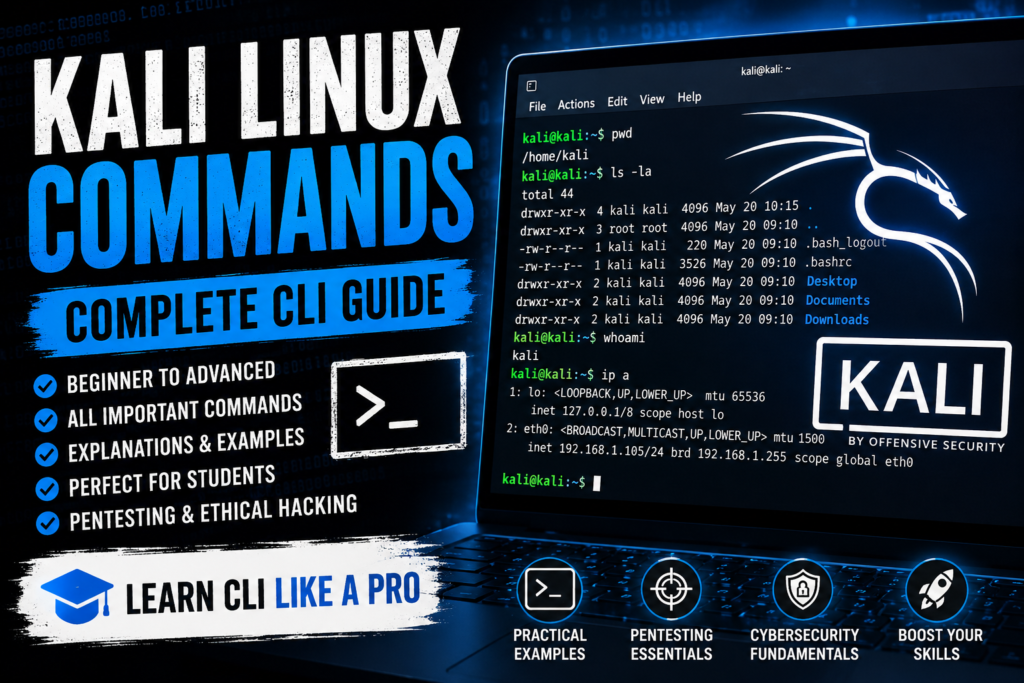
Kali Linux is one of the most widely used operating systems in cybersecurity, penetration testing, ethical hacking, digital forensics, and security research. Whether you are starting your journey in cyber security or preparing for advanced penetration testing, learning the Linux command line interface (CLI) is one of the most important skills.
In this guide, we will explore essential Kali Linux commands with explanations and examples so students can understand how Linux works internally and confidently navigate the terminal.
If you are completely new to Kali Linux, this article will help you understand:
- File and directory management
- User management
- Networking commands
- Package management
- Permissions and ownership
- Process management
- Compression utilities
- Monitoring and troubleshooting
- Security and pentesting-related commands
Why Learn Kali Linux Commands?
Most cybersecurity tools work through the command line. Understanding Linux commands helps you:
- Use security tools effectively
- Automate tasks
- Understand server environments
- Perform penetration testing efficiently
- Troubleshoot systems faster
- Work in cloud and DevOps environments
Students preparing for:
- CEH
- PNPT
- OSCP
- Security+
- eJPT
- SOC Analyst roles
- VAPT profiles
must learn Linux basics properly.
Understanding the Linux Terminal
The terminal is a text-based interface used to communicate with the operating system.
In Kali Linux, you can open the terminal using:
Ctrl + Alt + T
The terminal usually looks like:
user@kali:~$Where:
user= current usernamekali= hostname~= home directory$= normal user#= root user
Basic Kali Linux Navigation Commands
1. pwd – Print Working Directory
Displays the current directory path.
pwdExample Output:
/home/kali2. ls – List Files and Directories
Shows files and folders.
lsUseful Options:
ls -lDetailed view.
ls -aShows hidden files.
ls -laDetailed + hidden files.
3. cd – Change Directory
Move between directories.
cd DownloadsGo back one directory:
cd ..Go to home directory:
cd ~File Management Commands
4. touch – Create Empty File
touch test.txtCreates a file named test.txt.
5. mkdir – Create Directory
mkdir pentesthintCreates a folder.
Create nested folders:
mkdir -p test/demo/lab6. rm – Remove Files or Directories
Delete file:
rm file.txtDelete folder recursively:
rm -r foldernameForce delete:
rm -rf foldernameBe careful with rm -rf.
7. cp – Copy Files
cp file1.txt backup.txtCopy folders:
cp -r folder1 folder28. mv – Move or Rename Files
Rename:
mv old.txt new.txtMove file:
mv file.txt /home/kali/Desktop/File Viewing Commands
9. cat – Display File Content
cat notes.txt10. less – Read Large Files
less access.logUseful for log analysis.
Exit using:
q11. head – Show Beginning of File
head file.txtDefault: first 10 lines.
12. tail – Show End of File
tail file.txtLive log monitoring:
tail -f access.logVery useful during security monitoring.
Search Commands
13. find – Search Files
Find a file:
find / -name password.txt14. grep – Search Text
Search keyword inside files:
grep admin users.txtCase insensitive:
grep -i admin users.txtRecursive search:
grep -r password .User and Permission Commands
15. whoami – Current User
whoami16. sudo – Execute as Root
sudo apt updateRoot privileges are required for administrative tasks.
17. chmod – Change Permissions
Example:
chmod 755 script.shPermission Meaning:
- 7 = read + write + execute
- 5 = read + execute
Make script executable:
chmod +x script.sh18. chown – Change Ownership
sudo chown kali:kali file.txtNetworking Commands in Kali Linux
Networking commands are extremely important for penetration testers and SOC analysts.
19. ifconfig
Shows network interfaces.
ifconfigModern alternative:
ip a20. ping – Test Connectivity
ping google.com21. netstat – Network Connections
netstat -tulnpShows listening ports and services.
22. ss – Socket Statistics
Modern alternative to netstat.
ss -tulnp23. traceroute
Track packet route.
traceroute google.comInstall if missing:
sudo apt install traceroute24. nslookup – DNS Lookup
nslookup pentesthint.com25. dig – Advanced DNS Queries
dig pentesthint.comProcess Management Commands
26. ps – Running Processes
ps aux27. top – System Monitoring
topShows CPU and memory usage.
Better alternative:
htopInstall:
sudo apt install htop28. kill – Stop Process
kill PIDForce kill:
kill -9 PIDPackage Management Commands
29. apt update
Update package list.
sudo apt update30. apt upgrade
Upgrade installed packages.
sudo apt upgrade31. apt install
Install software.
sudo apt install nmap32. apt remove
Remove package.
sudo apt remove nmapCompression Commands
33. zip
Compress files.
zip archive.zip file.txt34. unzip
Extract zip files.
unzip archive.zip35. tar
Create tar archive:
tar -cvf backup.tar folder/Extract:
tar -xvf backup.tarCompressed tar.gz:
tar -czvf backup.tar.gz folder/Disk and Storage Commands
36. df – Disk Space
df -h37. du – Directory Usage
du -sh folder/Useful Cybersecurity Commands
38. nmap – Network Scanning
nmap 192.168.1.1Scan all ports:
nmap -p- target.comService detection:
nmap -sV target.comLearn more from the official Nmap Documentation
39. curl – HTTP Requests
curl https://pentesthint.comFetch headers only:
curl -I https://pentesthint.com40. wget – Download Files
wget https://example.com/file.zip41. ssh – Secure Shell
Connect remote server:
ssh user@192.168.1.1042. scp – Secure File Copy
scp file.txt user@192.168.1.10:/home/user/System Information Commands
43. uname
System information:
uname -a44. hostname
hostname45. uptime
uptimeShows system running time.
Kali Linux Tips for Beginners
Learn Tab Completion
Press TAB to auto-complete commands and file names.
Use History
View previous commands:
historyRun previous command:
!!Clear Terminal
clearShortcut:
Ctrl + LCommon Linux Directory Structure
| Directory | Purpose |
|---|---|
| /home | User files |
| /etc | Configuration files |
| /var | Logs and variable data |
| /tmp | Temporary files |
| /bin | Essential binaries |
| /usr | User programs |
| /root | Root user directory |
Best Way to Practice Linux Commands
The best learning approach is:
- Install Kali Linux in VirtualBox or VMware
- Practice daily commands
- Create files and folders manually
- Use TryHackMe and Hack The Box labs
- Learn bash scripting gradually
Recommended Learning Resources
Official Kali Linux Documentation
Internal PentestHint Resources
You can also explore:
Conclusion
Learning Kali Linux commands is one of the most important steps in cybersecurity. Almost every security assessment, server administration task, SOC investigation, cloud operation, and penetration testing activity depends on command-line knowledge.
Instead of memorizing commands blindly, try to understand:
- What the command does
- Why it is used
- Real-world use cases
- Security implications
The more you practice Linux commands daily, the more comfortable you will become with ethical hacking, VAPT, red teaming, and cyber defense operations.
Whether you want to become a penetration tester, SOC analyst, malware researcher, or cloud security engineer, mastering the Linux terminal will always give you a strong advantage.